Overview
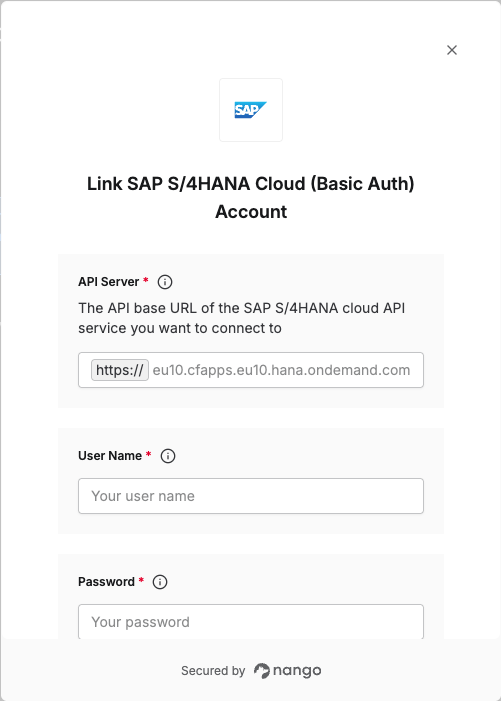
To authenticate with SAP S/4HANA using Basic Authentication, you will need the following:- API Server: The base URL of the SAP S/4HANA Cloud API service you want to connect to.
- Username: The Communication User’s username for API access using Basic Authentication.
- Password: The Communication User’s password for API access using Basic Authentication.
Prerequisites
- Admin access to your SAP S/4HANA system.
Step 1: Generating your Basic Authentication Credentials
- Log in to your SAP system and navigate to transaction code
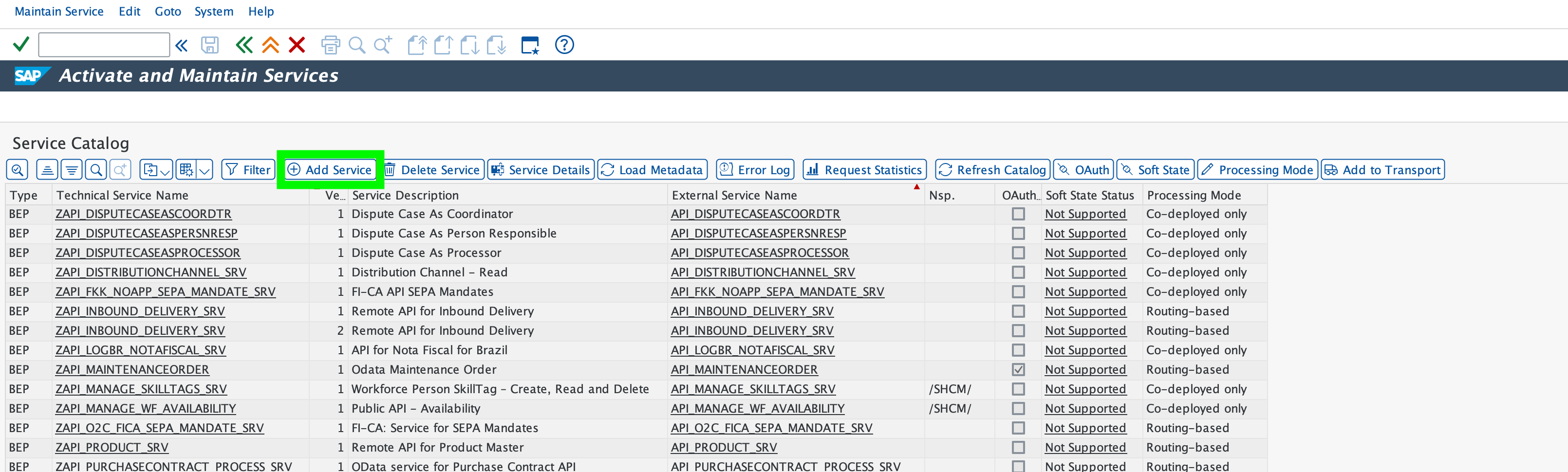
/n/iwfnd/maint_service. - Click Add Service, enter
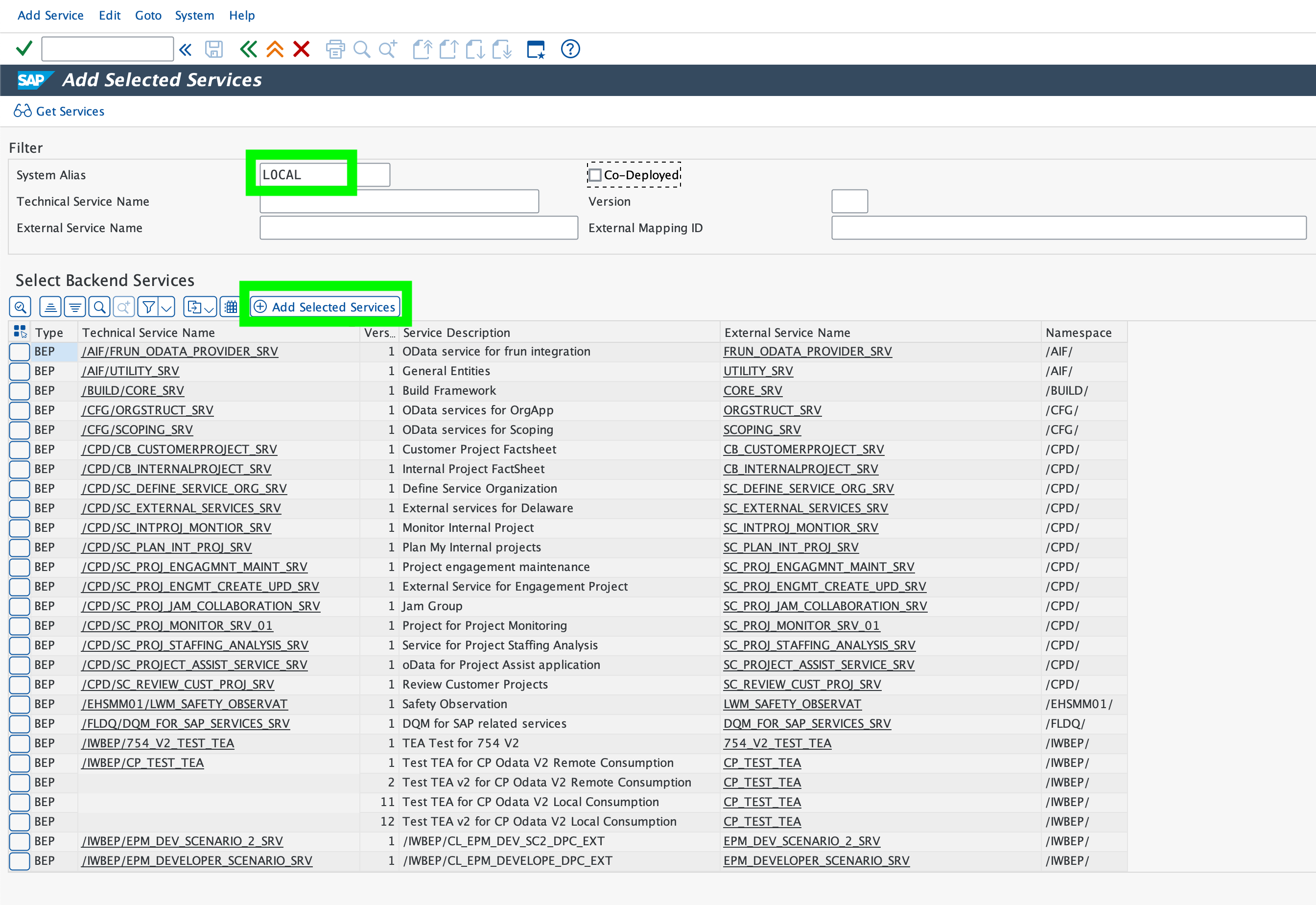
LOCALin the System Alias field, and press Enter.
- Select the service you plan to use and click Add Selected Services.
- Provide a custom name for the technical service, then click Local Object to save the service in the local package.
- Select the Communication Management group from your main menu.
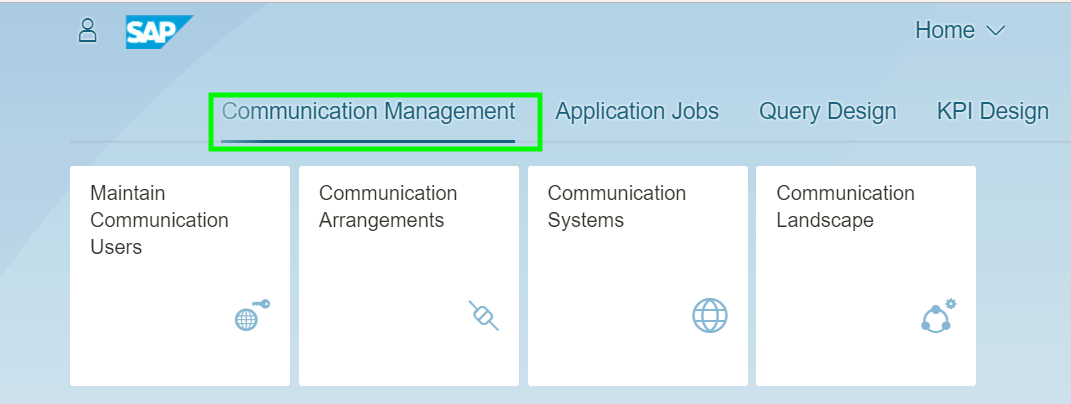
- Select the Maintain Communication Users app and click New.
- Enter a User Name, Description, and Password for the communication user.
- Click Create. The Password Status will become Productive. Click Save.
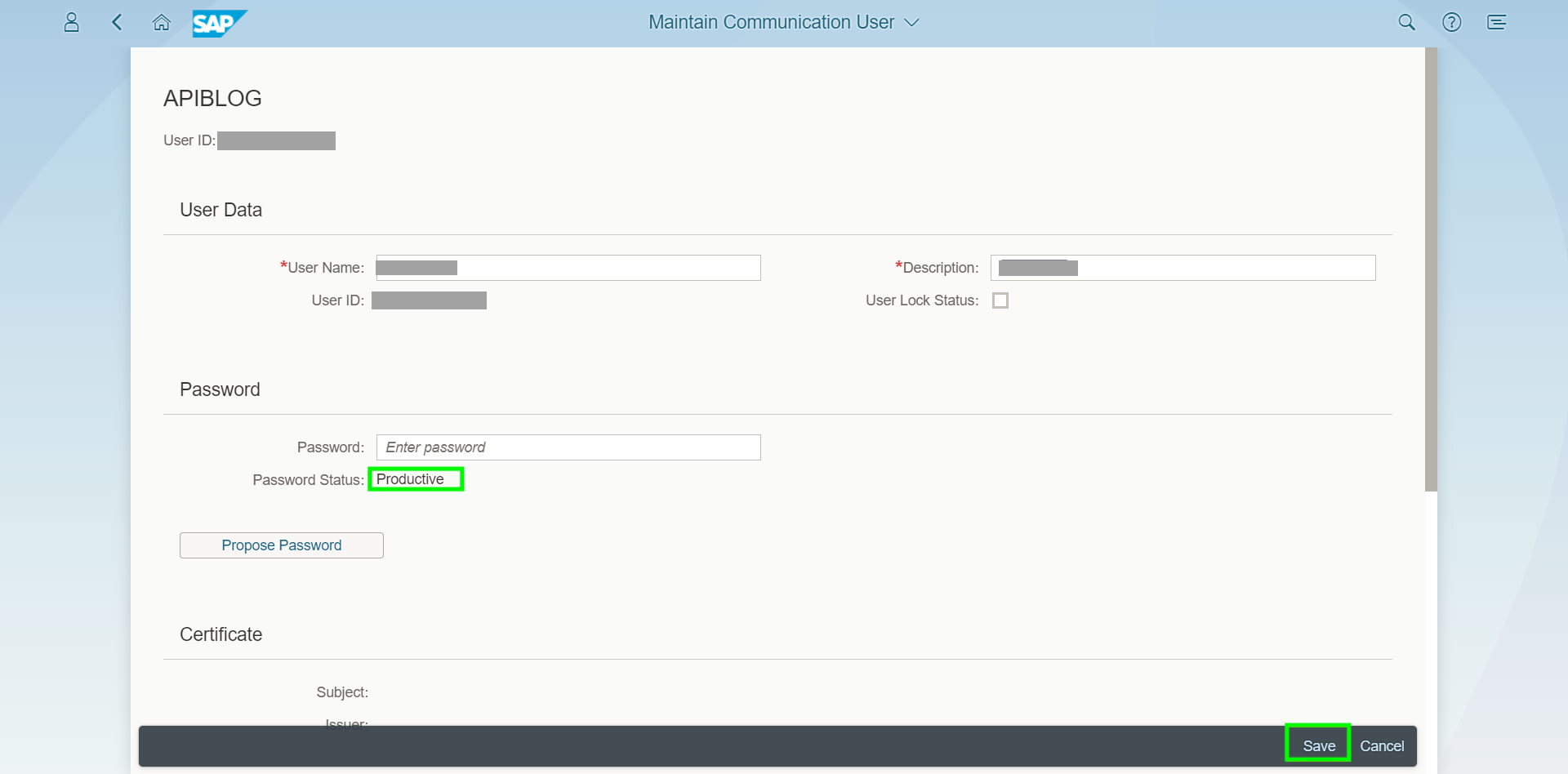
The Communication User is now successfully created. The credentials obtained here (Username and Password) are what you will use to authenticate.
- From the Communication Management group, click the Communication Systems app.
- You will see a list of existing Communication Systems (if any). Click New to create a new Communication System.
- Enter a System ID and System Name, then click Create.
- Enter the Host Name and HTTPS Port of the system you want to connect to.
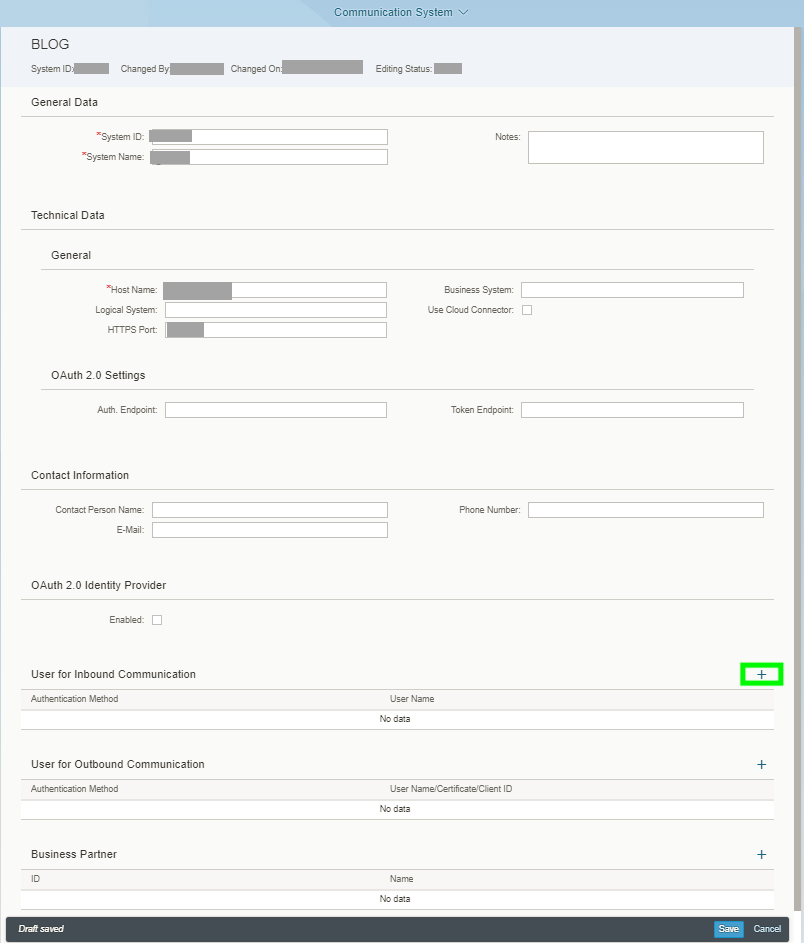
If you are testing APIs directly from SAP API Business Hub, you can use placeholder values. For production, use your actual system details.
- Click Add under Inbound Communication to add the user for authenticating inbound requests.
The Logical System field is optional for inbound services but mandatory for outbound services.
- Select the Communication User you created in step 7 from the value help and click OK.
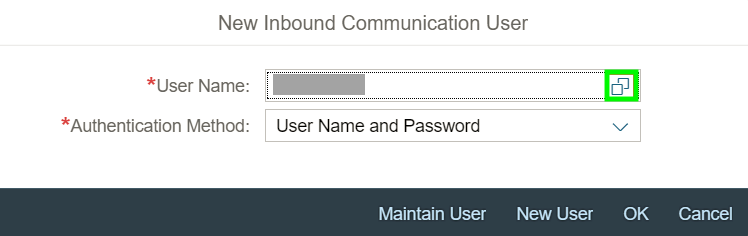
- Click Save.
- From the Communication Management group, click the Communication Arrangements app.
- You will see existing Communication Arrangements (if any). Click New.
- Select the relevant Communication Scenario from the value help based on the API you want to access.
- Example: For the Process Purchase Order API, select
SAP_COM_0053.
- Example: For the Process Purchase Order API, select
- Click Create.
You can find the relevant Communication Scenario in the API documentation on SAP API Business Hub.
- Select the Communication System you created in step 11 from the value help. The assigned Communication User will automatically appear in the User Name field.
- Click Save.
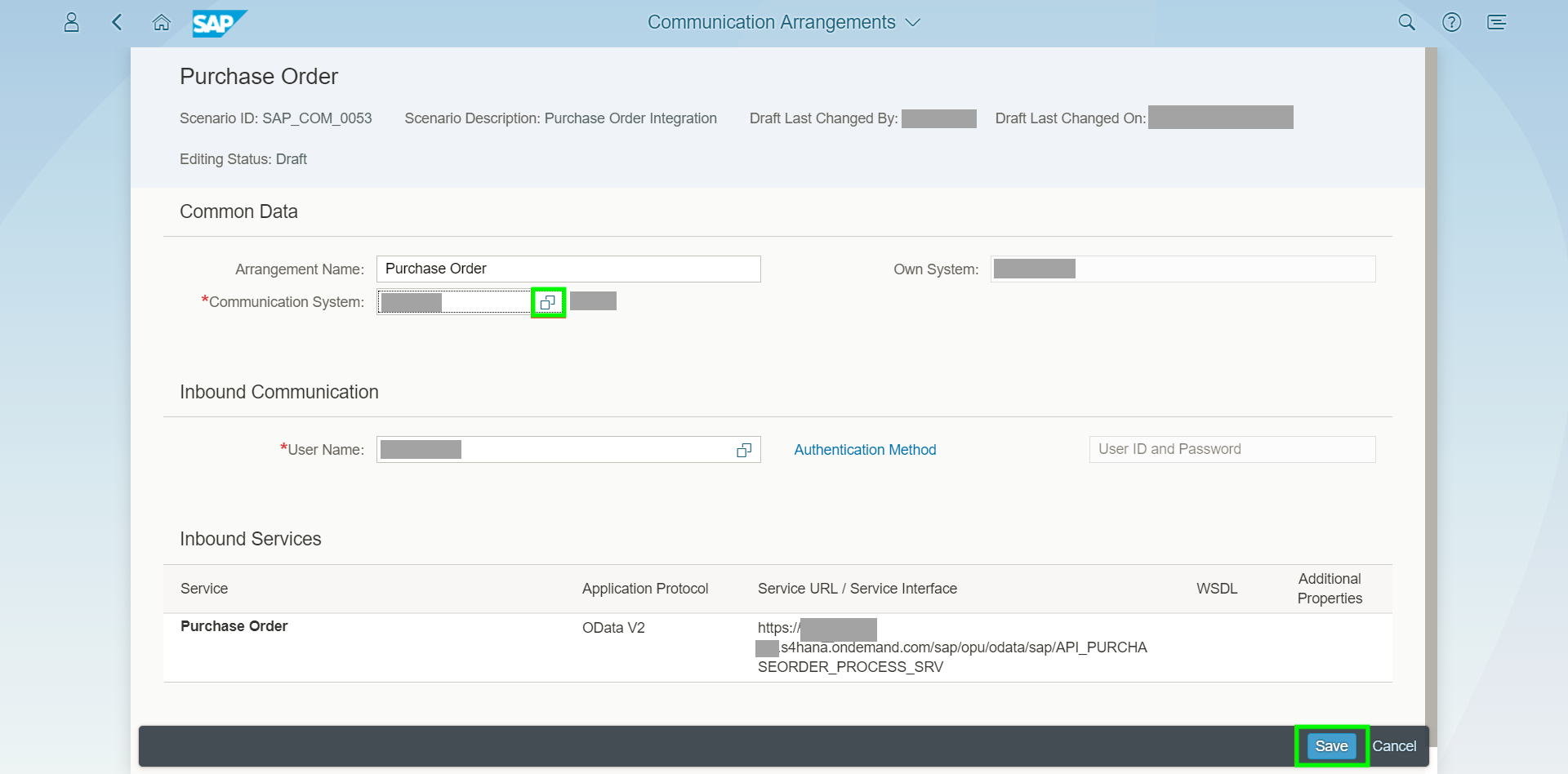
Step 2: Finding your API Server
- Navigate to the SAP Gateway Client or Service Catalog to find the base URL.
- Example: For the Measurement Concept Class API, the API Server would be
c4u-foundation-mcm-service.cfapps.eu10.hana.ondemand.com.
Step 3: Enter Credentials in the Connect UI
Once you have all the required information:- Open the form where you need to authenticate with SAP S/4HANA Cloud (Basic Auth).
- Enter your API Server, Username, and Password in their respective fields.
- Submit the form, and you should be successfully authenticated.